Progression editor
Overview
What the progression editor is, how it opens, live preview, and saving.
The progression editor is where you build a song's chord chart section by section. It opens as an overlay above the main window — a plate titled EDITOR — not a separate app window. Beside the title, one line reads the song: NAME · n BARS · duration · level.
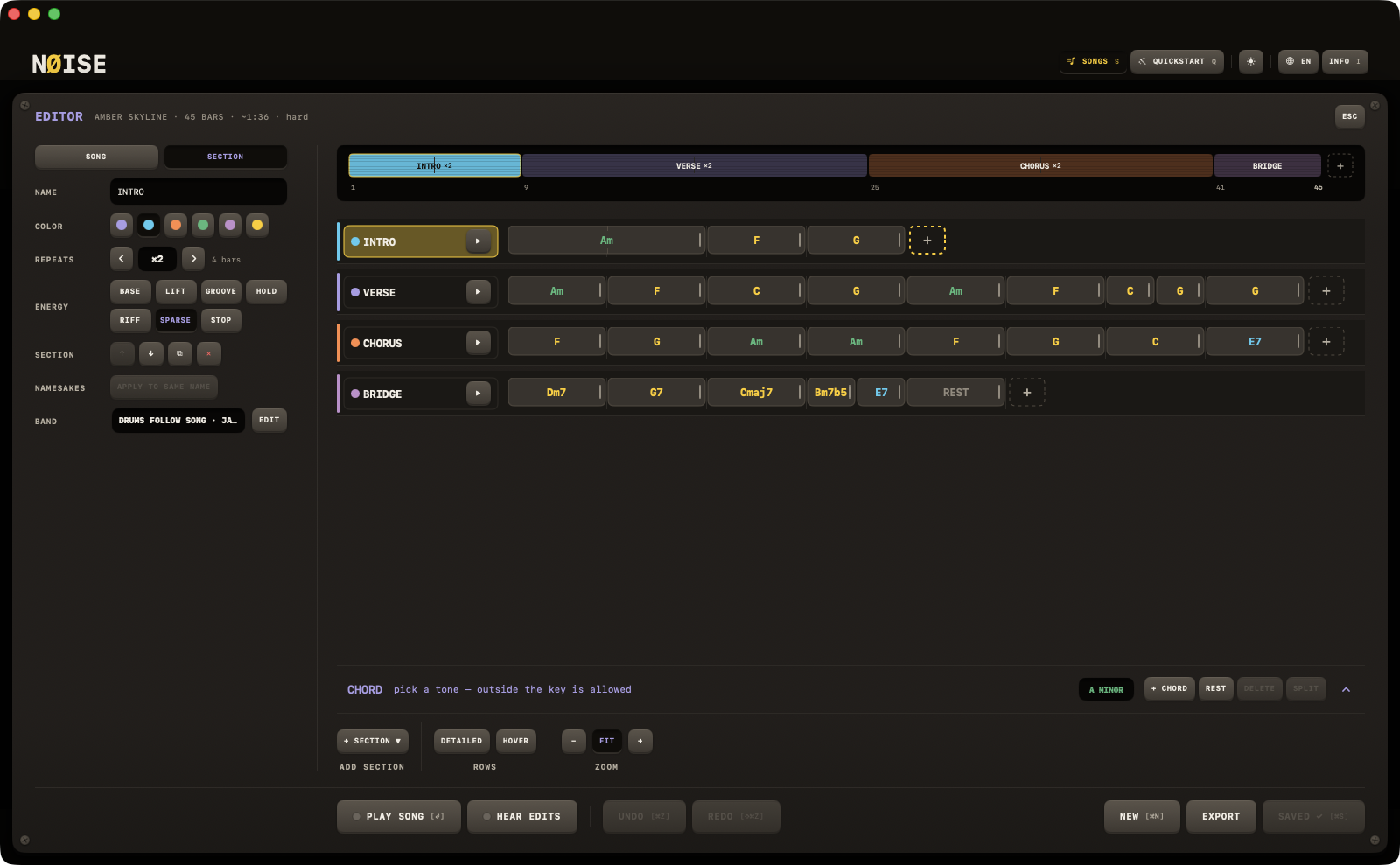
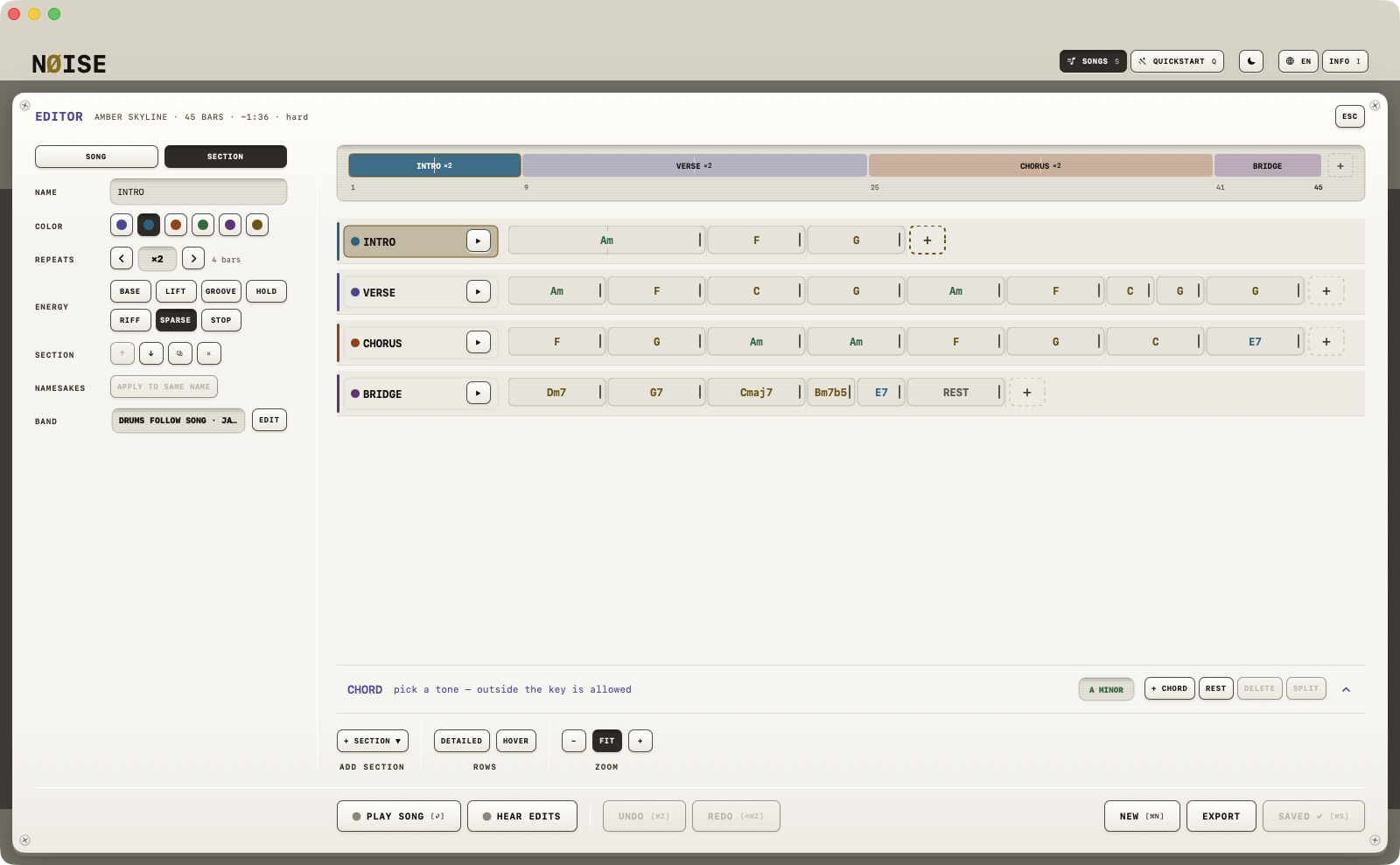
Opening it
- Press E (no modifiers) anywhere in the app.
- Or, in the SONGS plate: EDIT (
⌘↩) opens the selected song; NEW SONG (⌘N, from the search field too) opens the editor on an empty song.
Layout
The editor is a fixed layout: an inspector sidebar on the left, and on the right the song's form as one strip, the sections as rows under it, a control row (ADD SECTION, ROWS with DETAILED and HOVER, ZOOM) under the last row, and — always there — the chord dock at the foot of the chart pane. Nothing appears, disappears, or moves as you work; state changes are shown by color only.
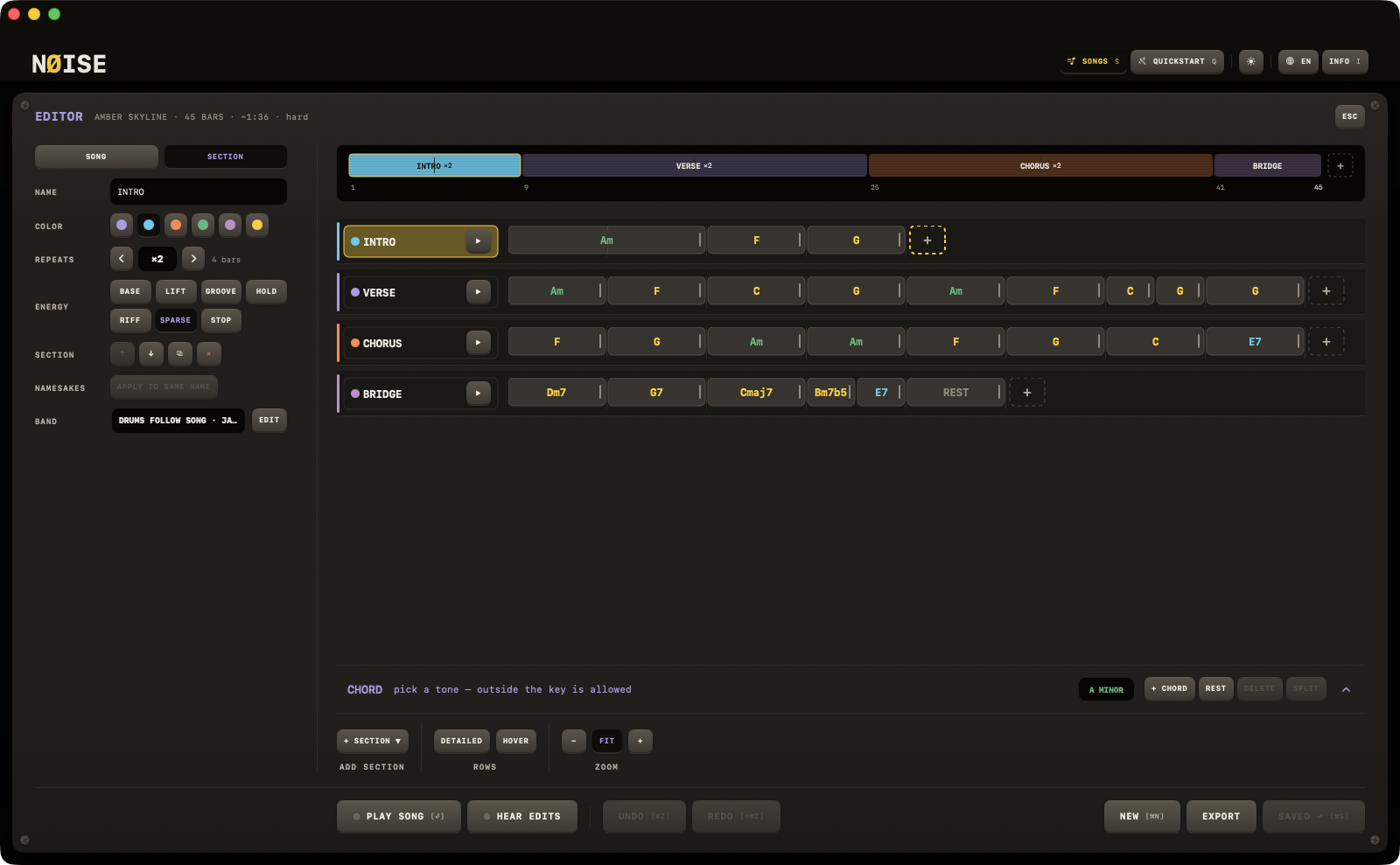
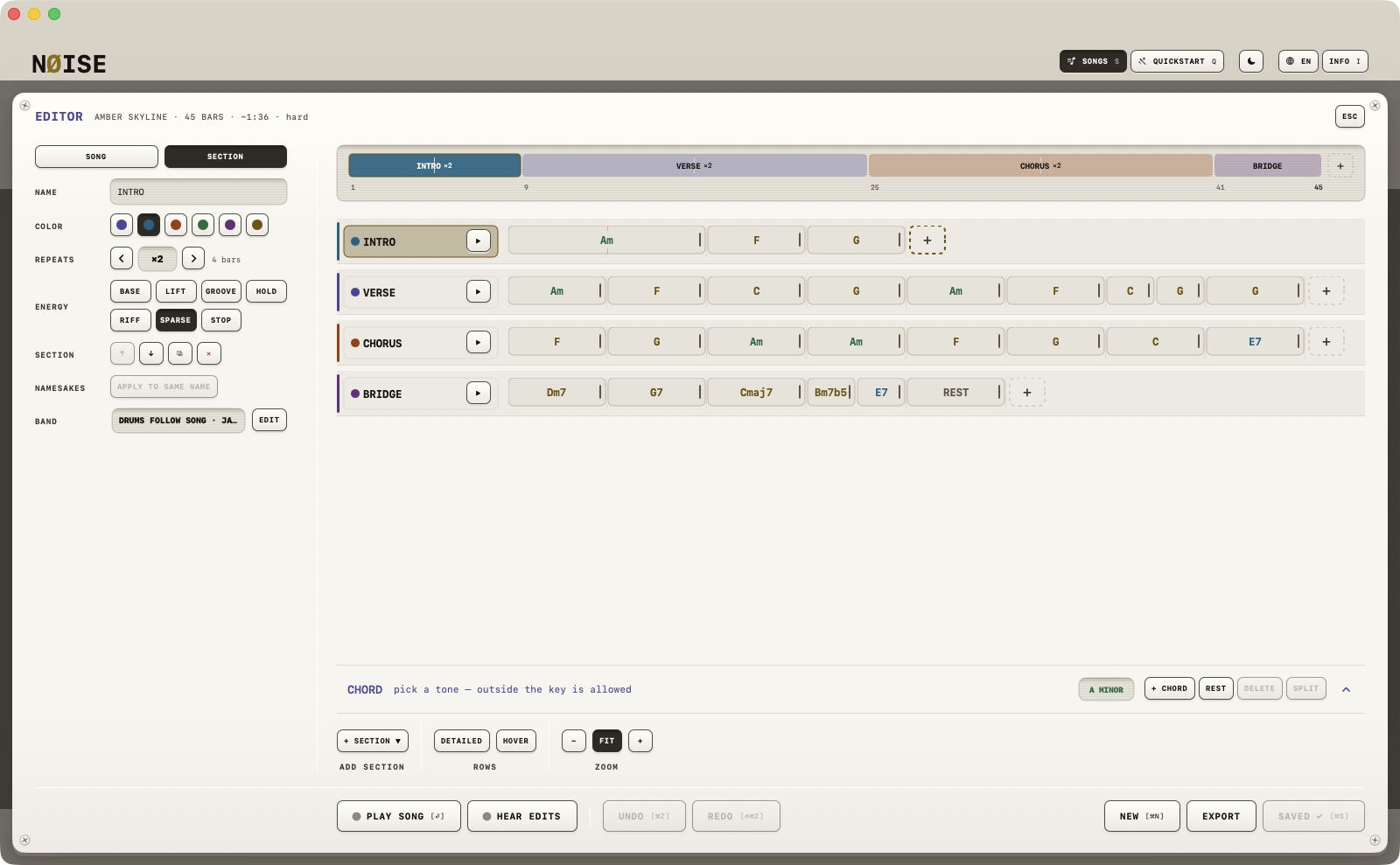
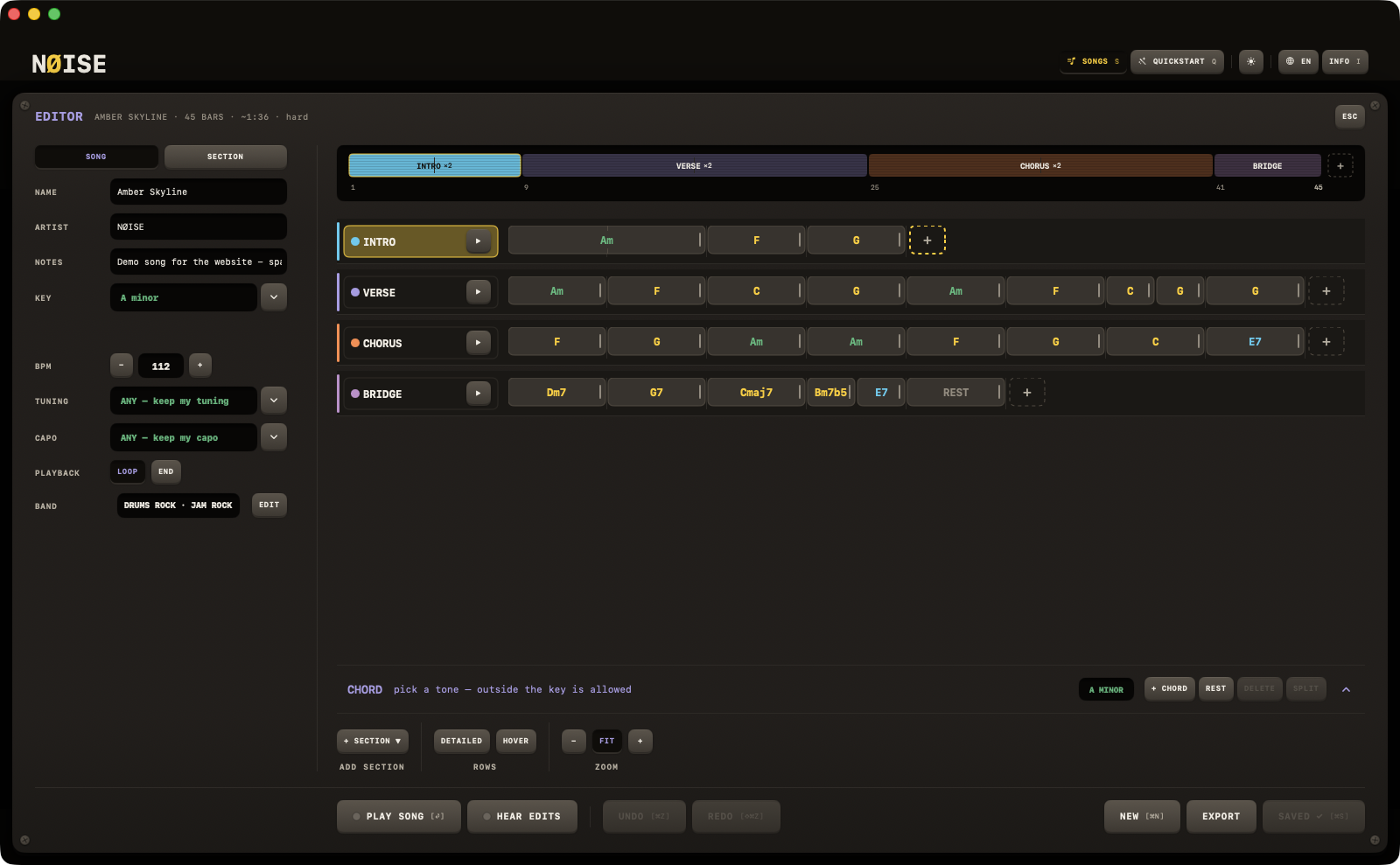
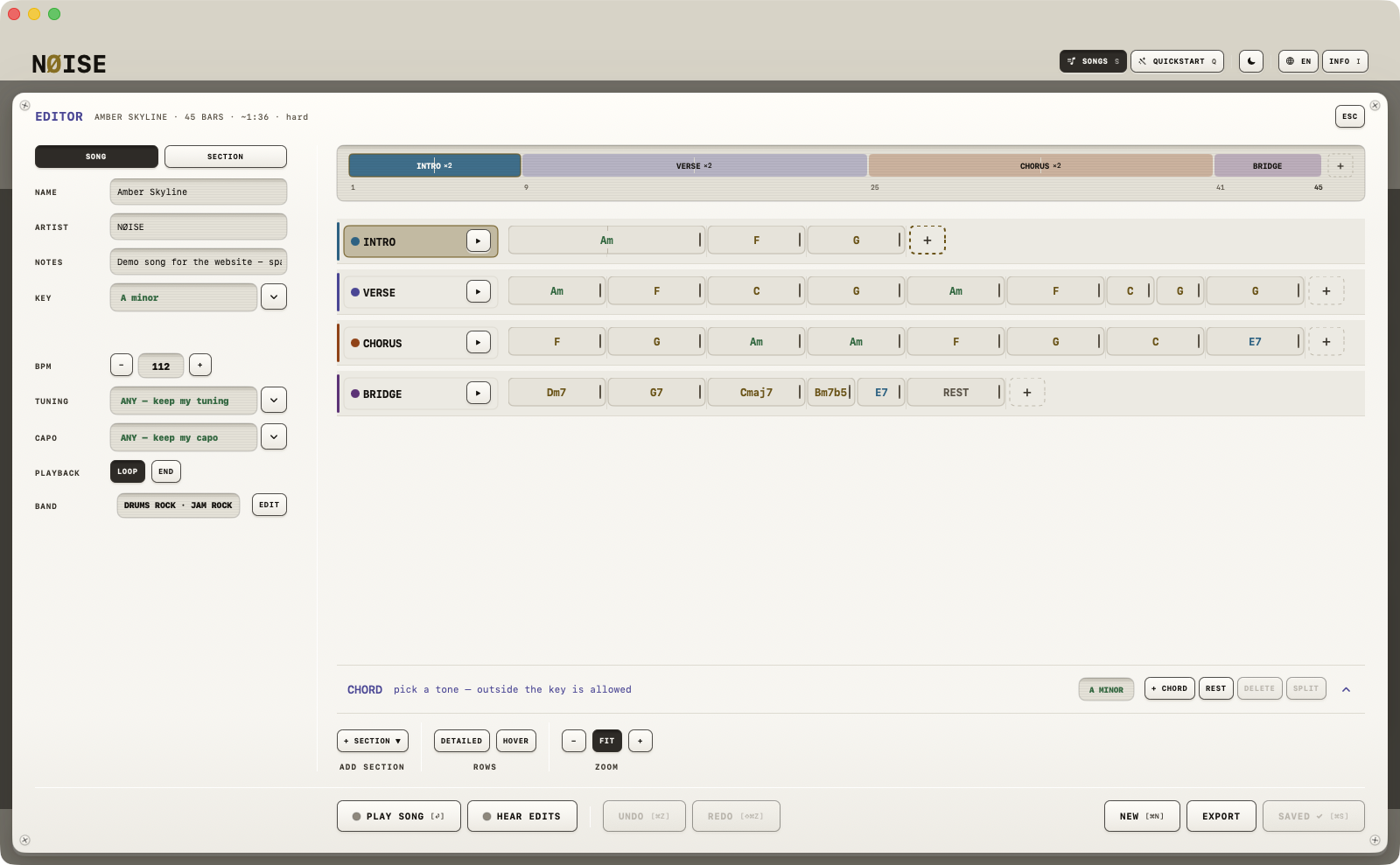
- The inspector has two tabs, SONG and SECTION, a full-width segment above its rows. A song opens on SONG; choosing a section — a click on its header, its lane, a chord in it, the strip, or ↑ ↓ — turns the tab to SECTION. NEW and a load go back to SONG.
- The chord dock is where chords are written: a titled panel under the rows whose header reads the selected chord and the song's key, with the rows TONE · TYPE · BASS · LENGTH (PUSH at its end) labelled on the left and GRIP as a column to their right where the dock is wide enough (under them on an upright iPad), so the dock is only as tall as the four rows. One click on a block selects it and the dock follows; the
+slot selects itself; ⌘-click and ⇧-click select several. Its chevron reads ˅ while open and ˄ while folded — a drawer at the foot of the pane. There is no popover any more — see Chords. - DETAILED, a key under ROWS: on (the default), a section row carries two detail lines (
×1 · 8 bars, what the section overrides); off, a row is its name row alone, about half the height, so more of the song stands above the dock. - HOVER, beside DETAILED: on (the default), resting the pointer on a block shows its grip on a card; off, the card never comes up.
- The transport group — PLAY SONG · HEAR EDITS · UNDO · REDO — stands at the chart's left edge whatever the window's width; NEW · EXPORT · SAVE hard right.
Playing while you write
The editor has keys of its own, and while it is open the window's hotkeys are off:
| Key | What it does |
|---|---|
| RETURN | Play the song from the top; again to stop. |
| SPACE | Hold the band where it is. Held or stopped: the selected section from its top — the same as its ▶; the section already on the band carries on; with no selection, the song. |
| ↑ / ↓ | Select the section above or below, at its first chord. While nothing sounds, or the band is held, selecting a section parks the playhead at its top — where SPACE will start. |
| ← / → | Wind the band a chord back or on in the section that plays or holds, in whole bars. Nothing sounding, nothing winds. |
The editor never counts in, whatever COUNT-IN says in GRID, and its transport is immediate: a start is now, a hold stops the clock with it, so carrying on is from the top of the held bar rather than the next downbeat. With METRO on the clock is the click's: a start joins the click on its next one, and the editor never resets or stops it.
An audition — PLAY SONG, a row's ▶, HEAR EDITS — plays the song's own band and tempo: a section that settles nothing itself sounds as it does in the app, from the song's band, never from the format's defaults or your own DRUMS and JAM plates. With HEAR EDITS on, a band or BPM edit reaches a running audition at the next boundary.
HEAR EDITS
A HEAR EDITS key in the footer. When on, any edit — chords, sections, key, tempo, end behaviour — is pushed into playback about 350 ms after you stop typing/clicking, so you can hear your changes without saving. Turning it on hands the band the chart as it is right now. Nothing is written to your song library from HEAR EDITS alone.
Saving
Nothing is saved until you click SAVE (or press ⌘S). The key is disabled until the chart has a chord and something changed; its label tells you the state: it reads SAVE while there are unsaved changes, and SAVED ✓ once everything is saved. A song saved without a name is called Song 1, Song 2, …
The footer, left to right: PLAY SONG [⏎] · HEAR EDITS │ UNDO · REDO │ NEW [⌘N] · EXPORT · SAVE [⌘S]. EXPORT writes a .noisesong file — it saves first if there are unsaved changes, so the file never differs from what you see.
Closing
Click ✕ or press ESC (an open drawer closes first). I opens INFO over the editor, with a SONG EDITOR group listing its keys. If you have unsaved changes, a notice appears — UNSAVED CHANGES, "<Song name> has unsaved changes" — with three keys: Keep editing, Discard changes, Save (⌘S).
NEW (⌘N) starts a fresh, empty song (the same unsaved-changes guard applies, asking first; NEW itself is one undo step).
What the editor starts with
If a song (or a custom chart) is loaded, the editor opens on that chart. Otherwise it opens empty: one section named "A", no chords. The JAM module's own progression is deliberately not imported — you pick a song or start writing.