Progression editor
Sections
Adding, removing, reordering and configuring sections — repeats, color, energy and the band's lanes.
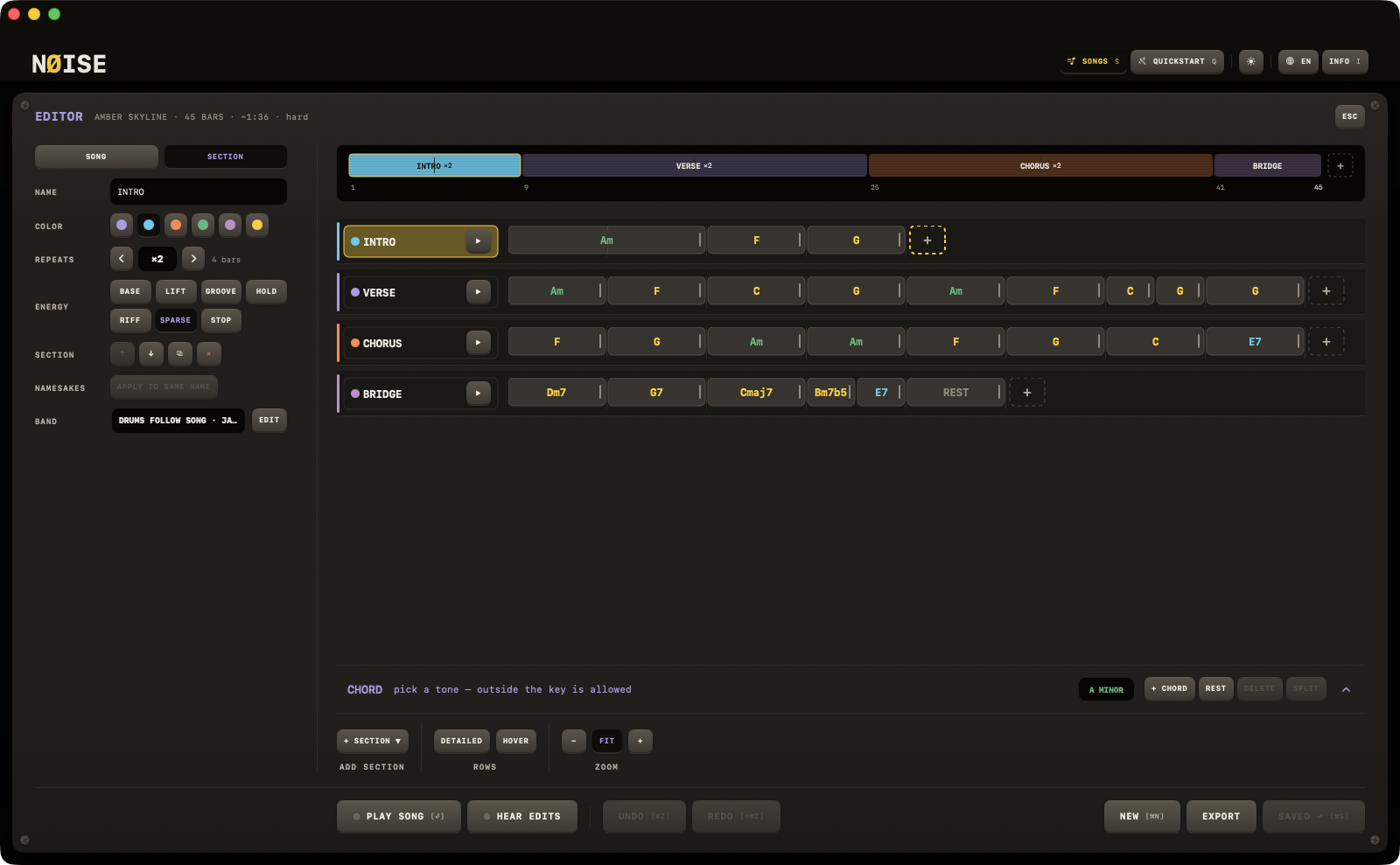
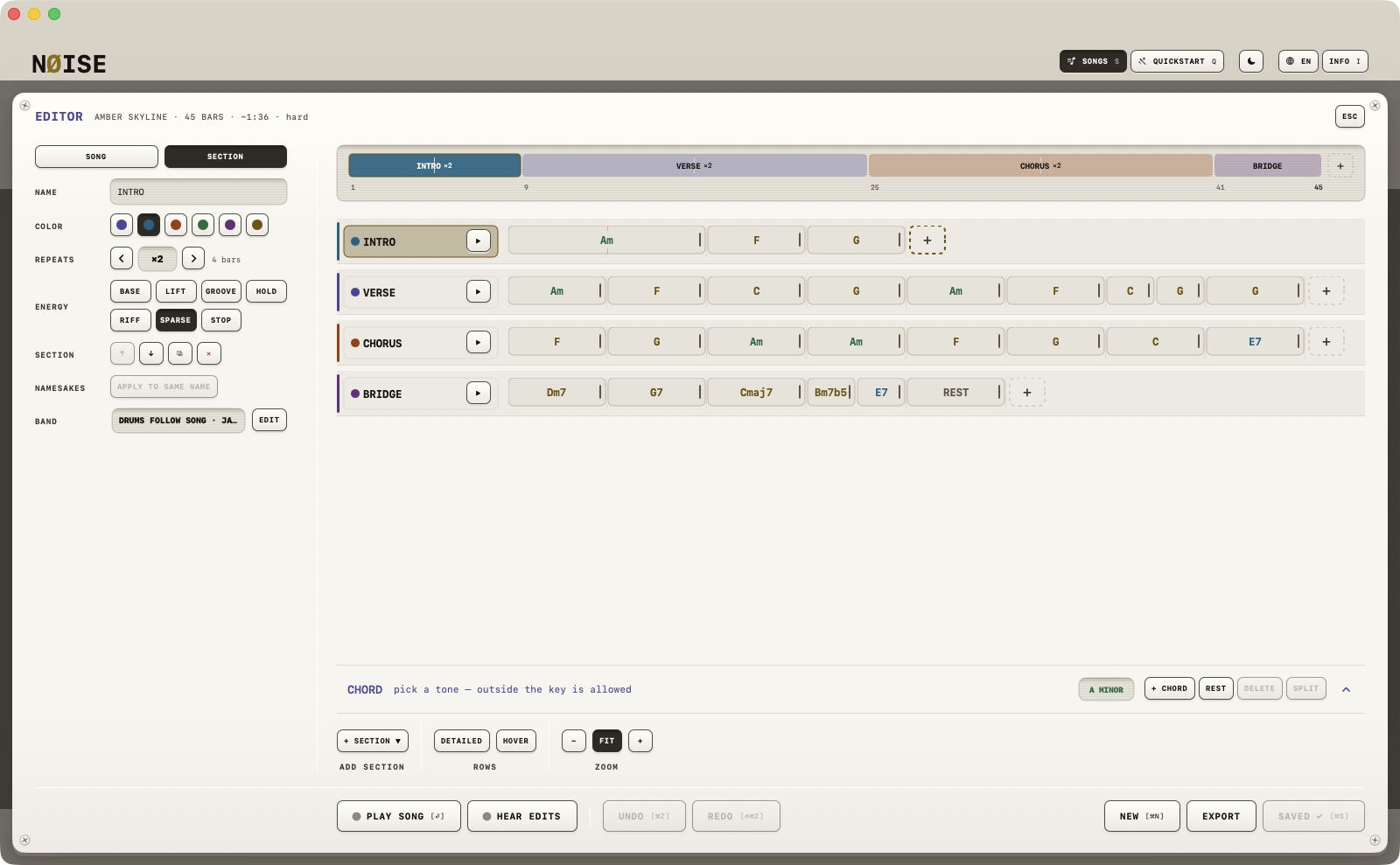
A song is built from up to 24 sections. This page covers everything in the SECTION block of the editor inspector except chords/durations and the section's band lanes (DRUMS, JAM), which have their own pages.
Adding a section
+ SECTION ▼ under the rows opens a list:
- EMPTY — a blank section, auto-named A, B, C… (or S9, S10… past H).
- INTRO — energy Sparse, cyan.
- VERSE — the default section.
- CHORUS — energy Lift, ×2 repeats, a fill on the way out, orange.
- BRIDGE — magenta.
- SOLO — energy Groove, ×2 repeats, amber.
- OUTRO — energy Hold.
- REST — green, pre-filled with a single rest bar.
The key is disabled once you're at 24 sections; a note beside it says so. A template's name is written into the section exactly as the button shows it in your language, so a chart made with the Dutch app has a section called REFREIN, and everyone who opens that song sees that name.
Removing, duplicating, reordering
The SECTION row of the inspector holds four keys:
- ↑ / ↓ (the keys in the row's header) move the section up or down one position. On the keyboard, ↑ and ↓ select the section above or below instead — see Overview.
- ⧉ duplicates the section immediately after itself (also capped at 24 total).
- ✕ removes the section — disabled when only one section remains (you can't delete the last one).
You can also drag: pick up a row by its header and drop it between two others; the line between rows lights where it will land.
Since 0.71 the same verbs live in a drawer on the section's name — a right-click or Control-click on the Mac, a press-and-hold on the iPad: DUPLICATE · COPY · PASTE · MOVE UP · MOVE DOWN · DELETE · LOOP (STOP while it loops). ⌘D duplicates the focused section, ⌘C / ⌘X / ⌘V copy, cut and paste it — a copied section also lands on the pasteboard as chart text, so it pastes into Notes, and a chart pasted from elsewhere becomes sections. Paste puts the section after the focused one.
While the song sounds — playing or held — a click on a section winds the band to that section's first bar, the way a click on a DAW's ruler does; stopped, it selects and parks as before.
Fields, per section
| Field | Control | Notes |
|---|---|---|
| NAME | text field | Not undoable — see Undo. |
| COLOR | 6 colored circles | Lavender, Cyan, Orange, Green, Magenta, Amber. Lavender is the implicit "song default" (stores no explicit tag). |
| REPEATS | −/+ stepper, ×N | Clamped 1–16. Beside it, the length of one pass in bars, computed from the chord durations. |
| ENERGY | 7 keys in two rows | BASE / LIFT / GROOVE / HOLD / RIFF / SPARSE / STOP — see Energy and overrides. |
| SECTION | ↑ ↓ ⧉ ✕ | Move, duplicate, delete (see above). |
| NAMESAKES | APPLY TO SAME NAME | Copies this section's settings to every other section with the same name. Disabled when there is none. |
| BAND | summary + EDIT | What this section says to the band: the DRUMS lane (on/off, FEEL, FILL IN, FILL OUT, PRESET, ENERGY, SWING, HUMANIZE, LIVE) and the JAM lane (INTENSITY, COLOR, RHYTHM). The style and the kit are the song's. See Energy and overrides. |
An empty section still saves
A section with no chords isn't dropped — it's saved as a single rest bar (drums keep playing, JAM stays silent).
Auditioning a section
▶ in a row's header loops just that section with the band, its own settings applied, without touching your saved song; the same key then reads ■ and stops the loop, and whatever was playing before comes back. With HEAR EDITS on, the loop follows your edits.