Getting started
First launch
The startup sequence NØISE runs every time it opens, step by step, and what each outcome means.
Every time NØISE opens it runs the same fixed startup sequence before showing the main window. This page documents every step, what "degraded" and "failed" mean, and the Debug Panel hidden behind the logo.
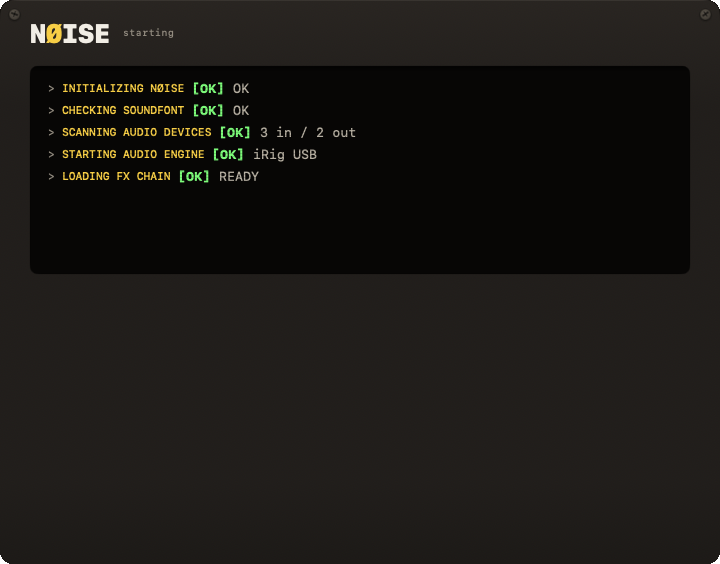
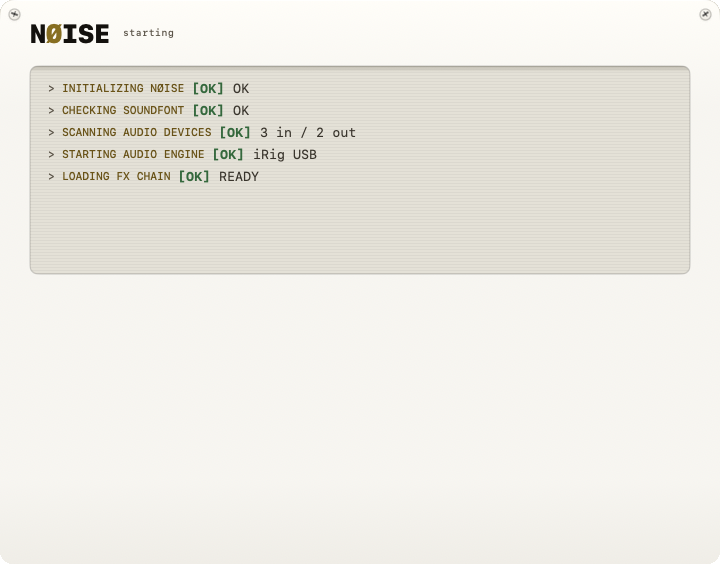
The startup sequence
Steps run in this exact order. Each has a timeout; if a step fails, it is marked with a severity that decides whether startup stops or continues:
| Step | Timeout | If it fails |
|---|---|---|
| INITIALIZING NØISE | 5s | fatal — startup stops |
| CHECKING SOUNDFONT | 30 min | warning — continues without drums/metronome sounds |
| SCANNING AUDIO DEVICES | 5s | fatal — startup stops |
| STARTING AUDIO ENGINE | 10s | fatal — startup stops |
| LOADING FX CHAIN | 5s | degraded — effects disabled |
| LOADING DRUM ENGINE | 5s | warning — drums disabled |
| LOADING METRONOME | 5s | warning — metronome disabled |
| LOADING JAM ENGINE | 5s | warning — jam engine disabled |
| SYSTEM READY | 2s | fatal (should never happen) |
Before STARTING AUDIO ENGINE, a first launch asks two questions, with your interfaces as keys: WHERE DOES YOUR GUITAR COME IN? (a digit per interface, N for NO GUITAR) and WHERE DO YOU LISTEN? (a digit per output, B for BACK). Only audio interfaces are listed; the built-in microphone is not an option. With no interface connected, NØISE skips the first question and says NO AUDIO INTERFACE FOUND · OUTPUT ONLY. A remembered choice is not asked again; the questions only come back when the app itself fell back to output-only because nothing was connected, and an interface is present now.
A fatal failure stops startup and shows a "STARTUP FAILED" line with the error, plus two ways out: a device select listing the detected audio interfaces (placeholder SELECT DEVICE) and a RESET SETTINGS key.
A degraded or warning failure lets startup continue, disabling only the affected feature. When any feature was disabled this way, the screen shows "RUNNING WITH LIMITED FUNCTIONALITY" with a list of what's disabled (e.g. "Disabled: Effects, Drums") and a CONTINUE ANYWAY button. When Effects is among them, an OPEN SYSTEM SETTINGS key sits beside it and takes you to Privacy & Security > Microphone.
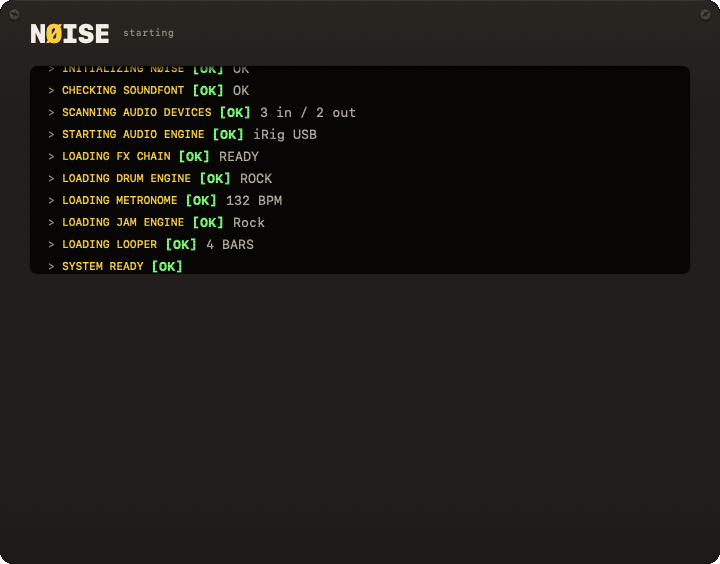
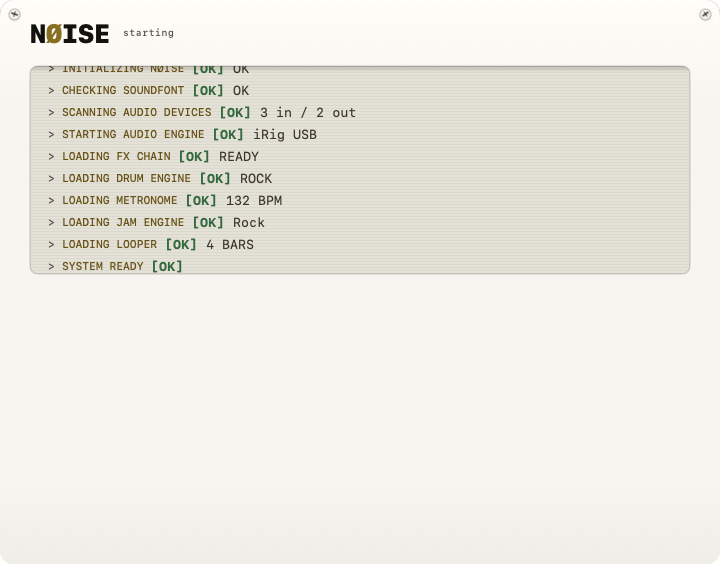
Step details worth knowing
- CHECKING SOUNDFONT downloads the NØISE Band (about 300 MB) from
noise-app.comif it isn't already cached or bundled. An interrupted download resumes where it left off on the next launch; once complete, NØISE checks the file's size and checksum and starts over if they don't match. A failed download never blocks startup; it just leaves drums and the metronome silent (result shown as "NO SOUNDS"). - SCANNING AUDIO DEVICES only fails fatally if macOS reports zero input and zero output devices at all — extremely rare.
- STARTING AUDIO ENGINE requests microphone access here, before touching the input device (macOS otherwise prompts lazily and the first start fails). If you deny access, the step reports "Microphone denied" with the message "Allow NØISE in System Settings > Microphone" and startup continues — but the engine has not started, so the steps after it report WAITING and the outcome line offers OPEN SYSTEM SETTINGS.
- If starting the engine throws a channel-out-of-range error (e.g. a device that no longer has as many input channels as last time), NØISE automatically resets the input channel to the first one and retries once, reporting "Channel reset to 1".
- After the engine starts, NØISE compares the live input and output sample rates read from Core Audio. If they differ, this is flagged and the sample-rate-mismatch modal is shown once startup finishes.
- LOADING FX CHAIN is marked degraded (not just skipped) when the engine has no input, or when a sample-rate mismatch was detected — effects need matching rates to run safely.
The Debug Panel
Clicking the NØISE logo text 5 times within 2 seconds, on the startup screen, opens a small developer-facing Debug Panel with:
- AUDIO DEVICES and SAMPLE RATES (live vs. cached, mismatches highlighted)
- SAVED SETTINGS — the raw values behind your current audio device, channel and sample-rate choices
- DEBUG LOG — the most recent lines of the log
- RESET ALL AUDIO SETTINGS — a red button. Confirming ("This will clear all audio device settings (interface, channels, sample rate) and restart the app. Your presets and other preferences will be kept.") clears the saved device/channel/sample-rate keys and relaunches the app.
- FIX RATE — clears only the cached sample rate (keeps your device/channel choice) and relaunches.
- COPY LOG and OPEN LOG FILE — both actually just copy the recent OSLog output to the clipboard. There is no debug log file in this build; "OPEN LOG FILE" is a legacy label that never opens anything on disk.
- AUDIO MIDI SETUP — opens the real macOS Audio MIDI Setup utility.
The same 5-click gesture on the main window's logo opens a second, more extensive Debug Panel — see Diagnostics.