Right panel
Song
Songs in the app — the SONGS plate, importing and exporting, and what a loaded song does to DRUMS and JAM.
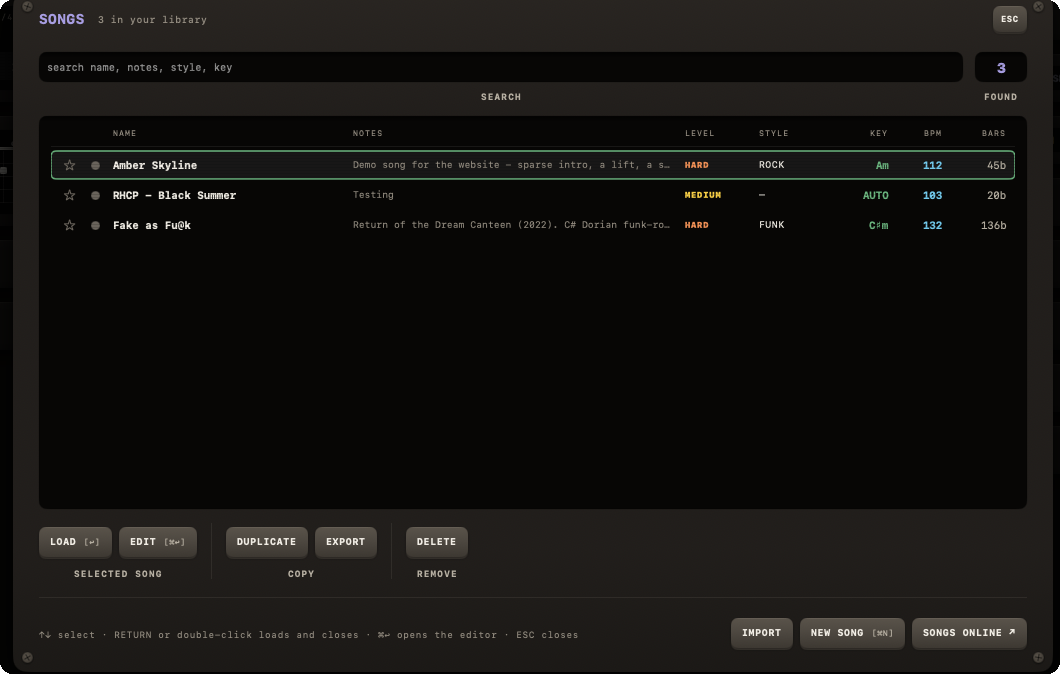
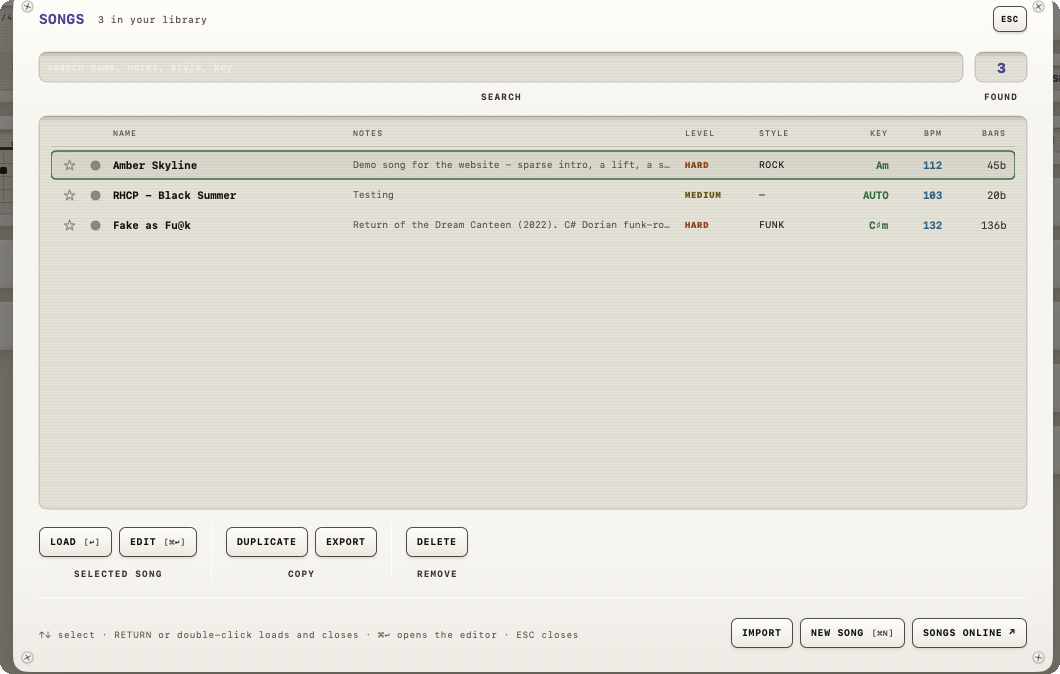
There is no SONG module in the panel any more. Your songs live in the SONGS plate (the header button, or S), and a loaded song shows up in the DRUMS and JAM modules, which hand their controls to it.
Controls
The plate's title reads how many songs are in your library. Under it:
- SEARCH — type to narrow the list by name, notes, style or key; FOUND counts the matches. The field keeps the focus while the plate is open, so
↑/↓pick a row and RETURN loads it. - The list — see below.
- The control row — acts on the selected song; see below.
- IMPORT — opens a file panel for
.noisesong, JSON or plain-text chart files (several at once if you like) and adds them straight away. There is no clipboard route. - NEW SONG — opens the progression editor; NEW in there starts from scratch.
Warning
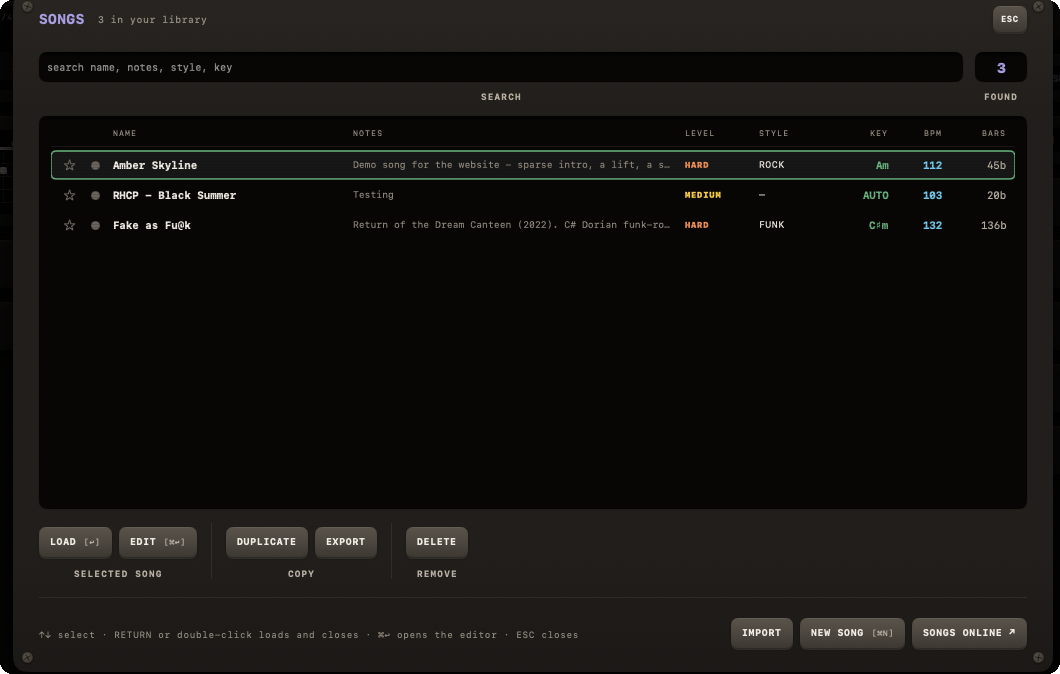
IMPORT adds the song(s) immediately, with no confirmation dialog — only a small "Song added" notice afterwards (or "No song found"). This differs from opening a .noisesong file or noise:// link from outside the app (Finder, a browser, Messages), which asks first — CANCEL or ADD — and then opens this plate on the songs that just landed. See Import for the full breakdown.
The song library
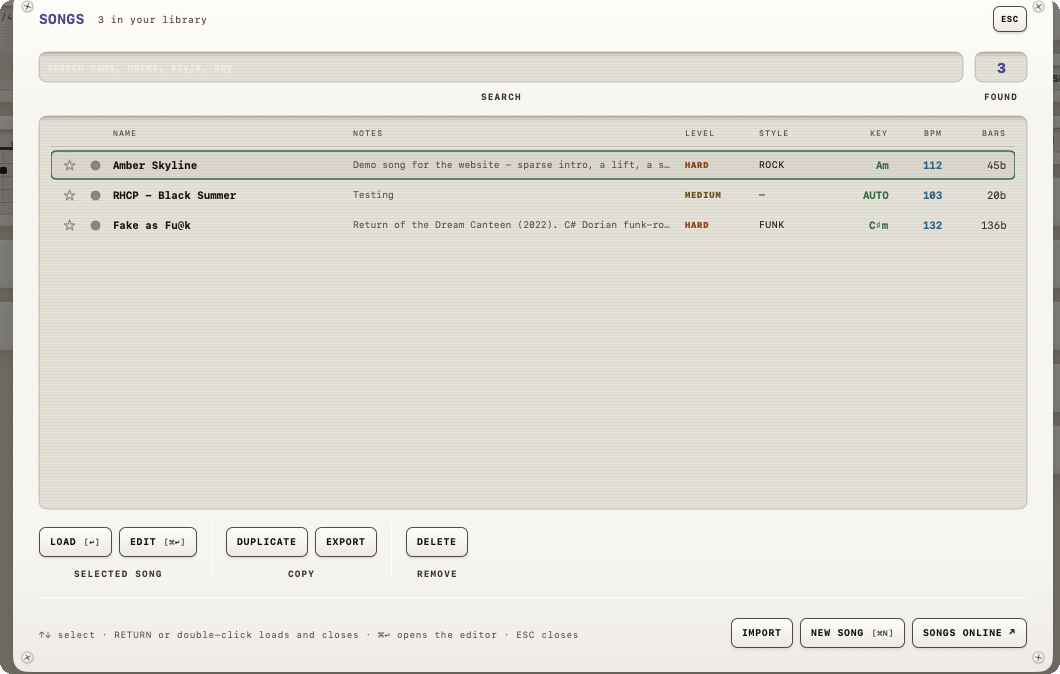
One list, starred songs first, then newest first. Each row shows a star (click to pin the song to the top), an LED on the song that is loaded, then NAME, NOTES, LEVEL (EASY/MEDIUM/HARD, read from the chart), STYLE, KEY (or AUTO), BPM and BARS.
A single click selects a row; RETURN, LOAD or a double-click load it and close the plate. Loading stops whatever the band was playing, and a song's own key, tempo and tuning land on the session.
The control row
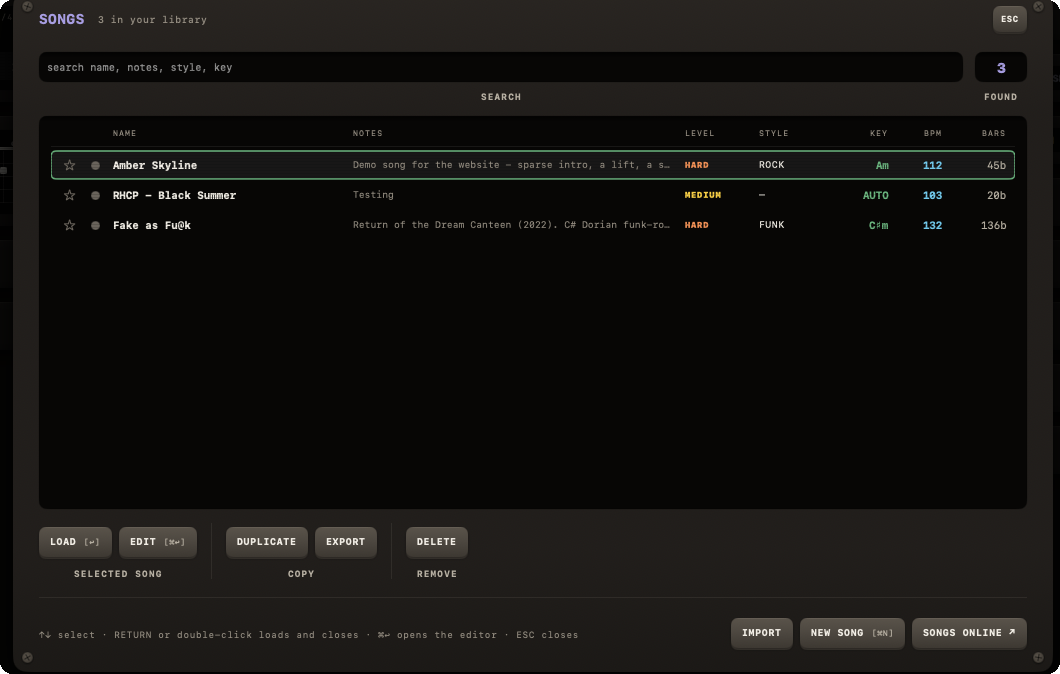
One row of keys under the list, acting on the SELECTED SONG. In order:
- LOAD (
↩) — loads the song and closes the plate. - EDIT (
⌘↩) — loads the song and opens it in the progression editor, over this plate. - COPY › DUPLICATE — makes a full copy of the song with a fresh identity, appended to your library, and selects it.
- COPY › EXPORT — opens a save panel to write a
.noisesongfile to disk. See The .noisesong file and the noise:// link. - REMOVE › DELETE — two taps: the first arms the key (it reads AGAIN? in the danger colour), the second deletes. Any other click disarms it.
Copying a song as text or as a noise:// link is not in the app; links are made by the website. What the text of a song looks like is on Song text format.
Only LOAD and EDIT have keys; DUPLICATE, EXPORT and DELETE do not.
A loaded song holds the band
While a song (or a custom chart) is loaded, the DRUMS and JAM modules replace their control stacks with one row each: the play pad (D / J — PLAY still starts and stops them), a DETACH pad, and a screen headed SET BY THE SONG with the song's name — style, feel and energy follow the song's sections. Collapsed, both headers read <name> · <level> · <bars>.
DETACH gives the band back: the JAM module returns to its selected preset progression and every control the song borrowed is yours again. The tempo, key and tuning the song applied when it loaded stay as they are.
Opening the editor
- E anywhere in the app.
- EDIT or NEW SONG in the SONGS plate.