The one screen
Layout
The single window NØISE runs in — panel split, sizing, and how modules collapse.
NØISE is deliberately one window with no other windows to manage (aside from a few overlays and floating panels described elsewhere). This page covers its layout mechanics.
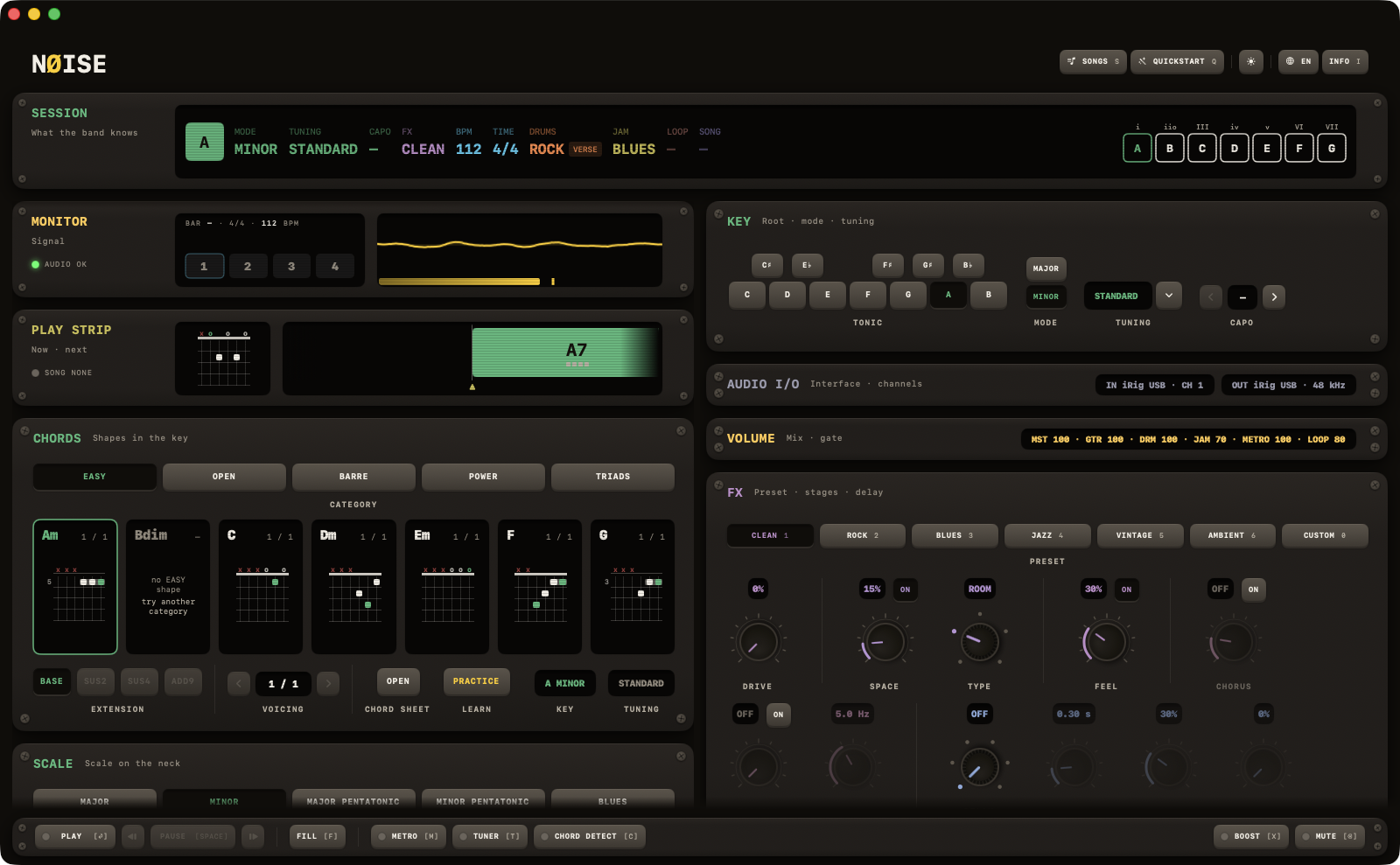
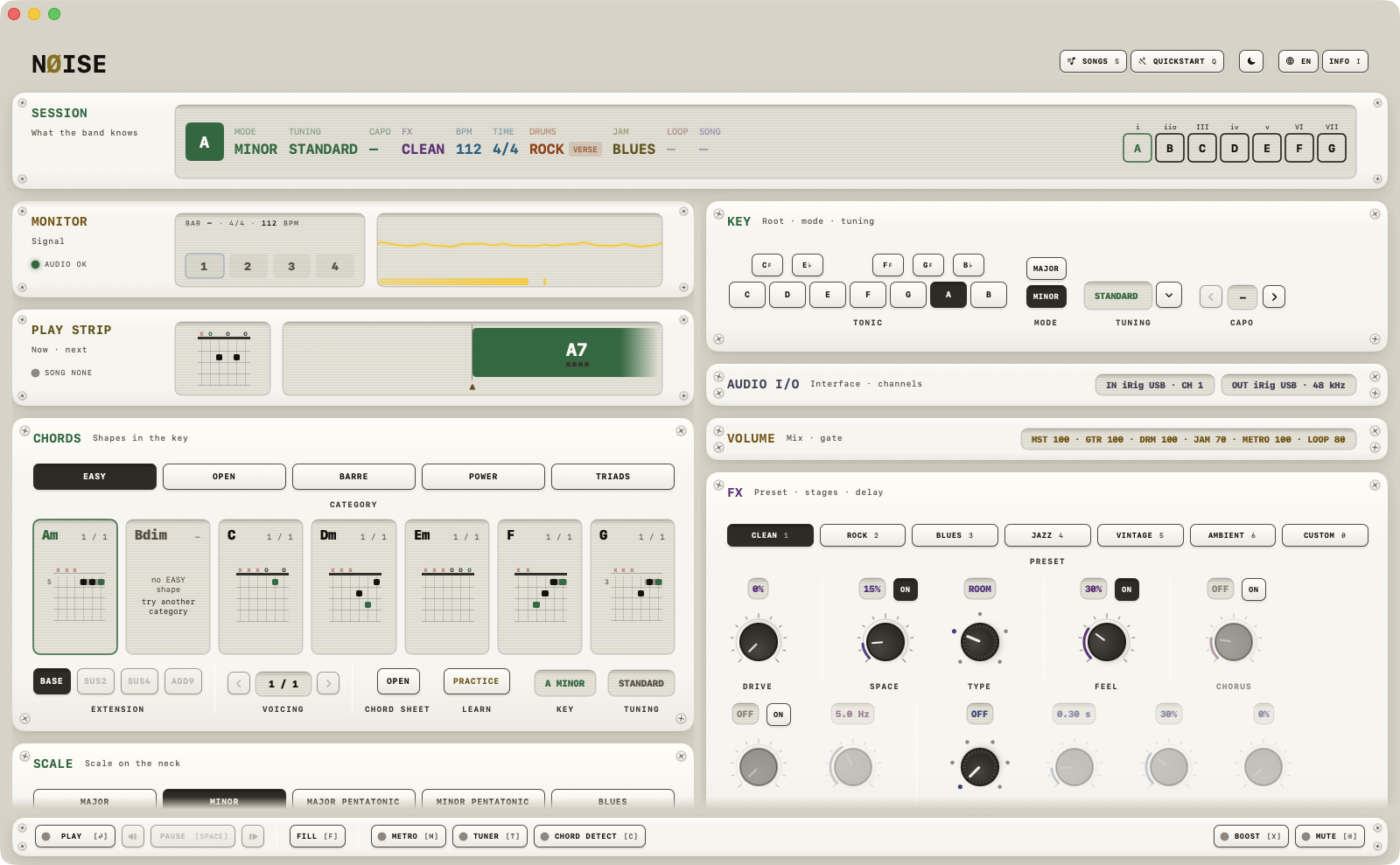
Window sizing
- Minimum window size: 1500 × 600; at the larger zoom step the minimum scales with it.
- The window opens at 1600 × 950, never below the minimum.
- The title bar is hidden — the header row (logo, SONGS, QUICKSTART, theme, language, INFO) doubles as the window chrome.
The split
Below the header and the SESSION line, the window splits into two columns of equal width:
- Left, what you look at: MONITOR, PLAY STRIP, TUNER (when enabled), CHORD DETECTOR (when enabled), CHORDS, and SCALE.
- Right, what you operate: KEY, AUDIO I/O, VOLUME, FX, GRID, DRUMS, JAM — and, since 0.72, LOOPER.
Each column scrolls as a whole; the SESSION line at the top and the transport at the bottom stay put. SESSION reads what the band knows — key and mode, tuning, capo, FX preset, tempo and time, drums, JAM, the scale — every value in the hue of the module that owns it. You can drag a module by its title to another slot in its column — the plate's own head lifts out of the rack and travels with the pointer — and NØISE remembers the order.
A few screens open big: a click on the TUNER's or the CHORD DETECTOR's screens (and the LOOPER's) lifts them onto a wide sheet one gap under SESSION, the way SCALE opens — the same screens at twice the size, not a second design. ESC or a click beside the sheet closes it.
See Right panel and Left panel for what each module does.
Collapsing modules
Every module in the right panel, plus CHORDS and SCALE on the left, has a clickable header with a chevron: click it to collapse the module down to a one-line summary of its readings. A collapsed plate opens again from anywhere on its face (since 0.74 — the title row alone missed too often at speed); open, only the title row closes it, and a click between the controls does nothing. State is remembered between launches. MONITOR, PLAY STRIP, TUNER and CHORD DETECTOR cannot be collapsed — they're either shown in full or hidden entirely. TUNER and CHORD DETECT are switched on and off from the transport at the bottom, with T and C.
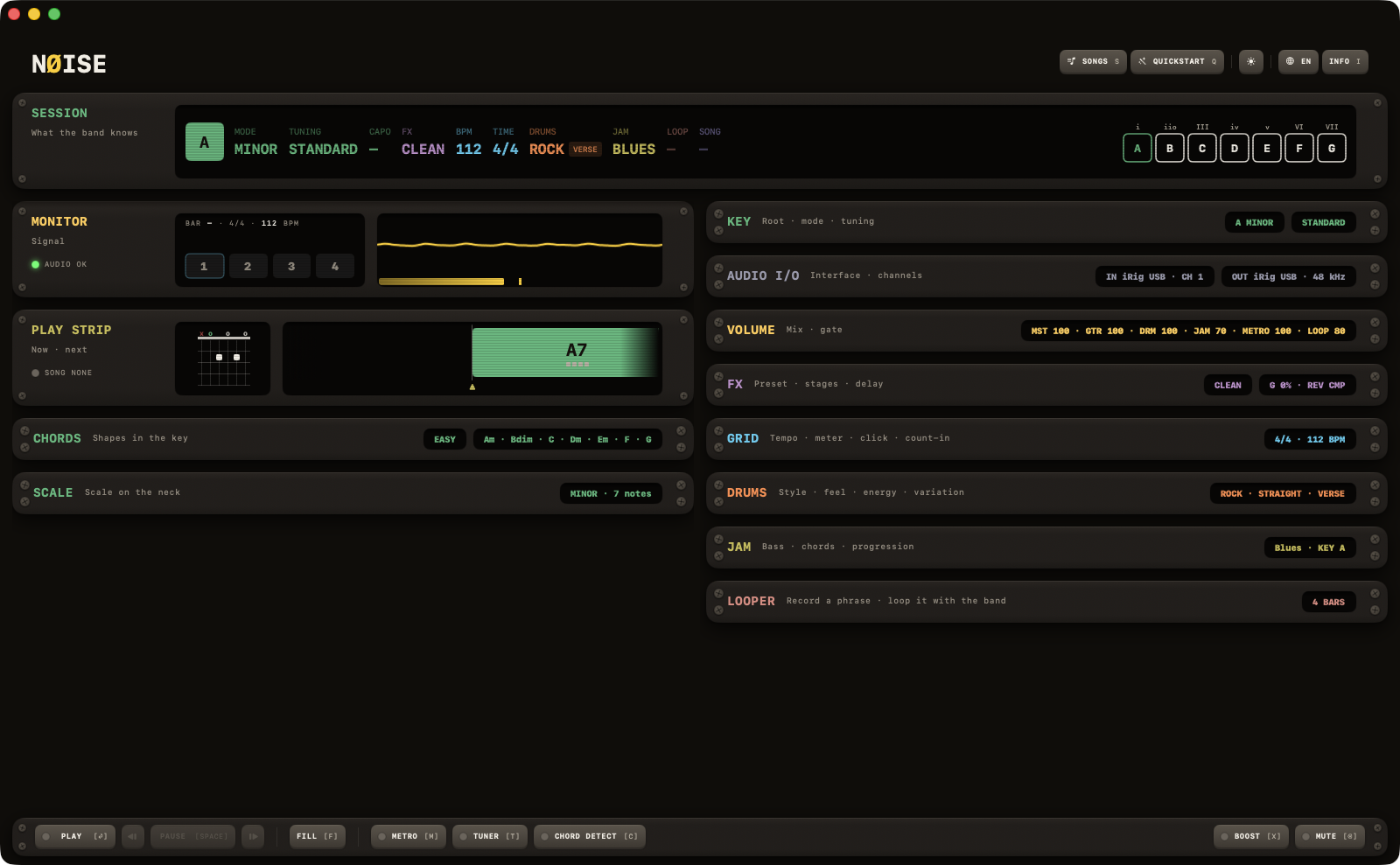
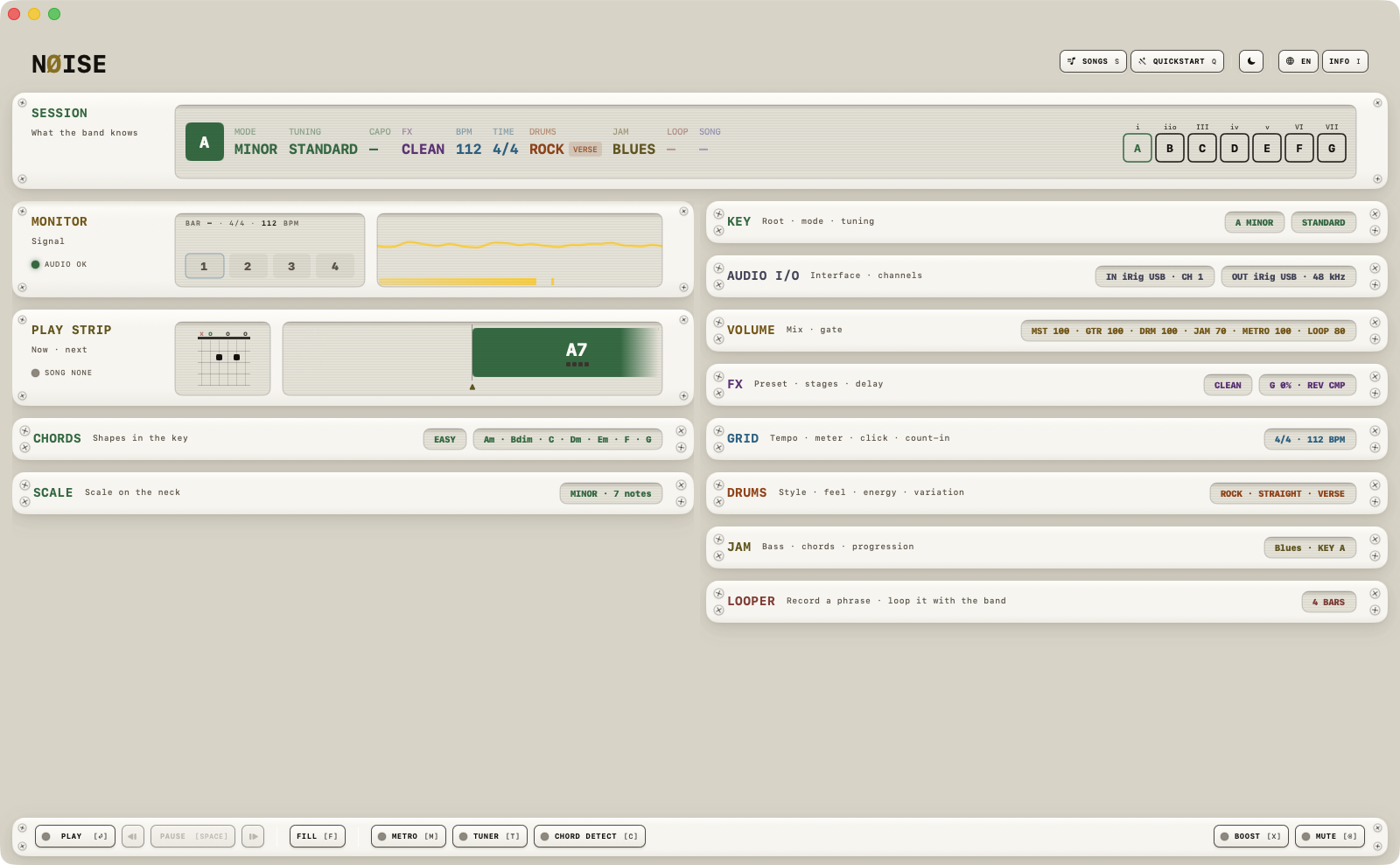
On a first launch every module starts collapsed — a rack of title lines with their readings. From then on NØISE remembers each module separately.
| Module | Default |
|---|---|
| AUDIO I/O | collapsed |
| VOLUME | collapsed |
| FX | collapsed |
| GRID | collapsed |
| DRUMS | collapsed |
| JAM | collapsed |
| LOOPER | collapsed |
| KEY | collapsed |
| CHORDS | collapsed |
| SCALE | collapsed |
Zoom and theme
There are exactly two zoom steps: 100% and 115% — there is no third step. You switch from the keyboard (⌘+ and ⌘-; ⌘0 resets), and everything scales with it, the window minimum included. The header row has a theme toggle (sun/moon icon) switching between the dark and light themes shown above. Both are also available as keyboard shortcuts:
| Key | Action |
|---|---|
| ⌘+ | Zoom in |
| ⌘- | Zoom out |
| ⌘0 | Reset zoom |
| ⌘T | Toggle theme |
| ⌘WHEEL | Turn the knob, fader or switch under the pointer (a plain wheel scrolls) |
Knobs, faders and the wheel
Every knob, fader and switch is dragged up or down; a double-click resets a knob. The scroll wheel turns the control under the pointer only while ⌘ is held — a plain wheel scrolls the rack, so scrolling through a column full of knobs never turns one on the way. The trackpad's roll-out after your fingers lift never turns a knob either. The same rule holds for the BPM stepper in GRID. On the iPad there is no wheel rule: a knob, a fader or a switch is dragged, with a finger or the trackpad.