Tools
Diagnostics
The Debug Panel — 5 clicks on the logo, restart/reset controls, and how log copying actually works.
NØISE has no separate end-user "Diagnostics" feature — what's meant by that is the Debug Panel, a developer-facing panel reachable at any time.
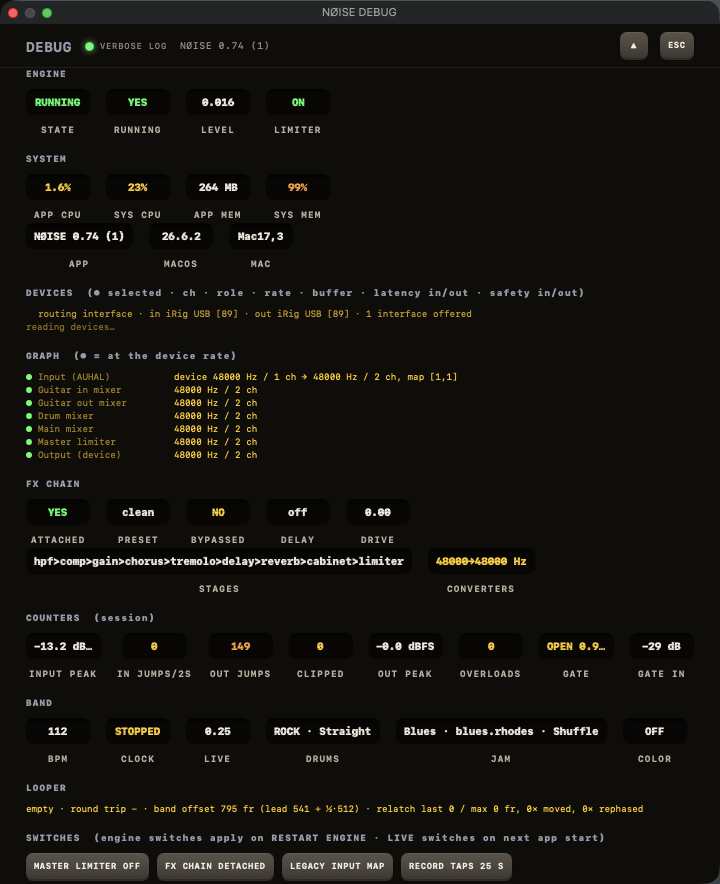
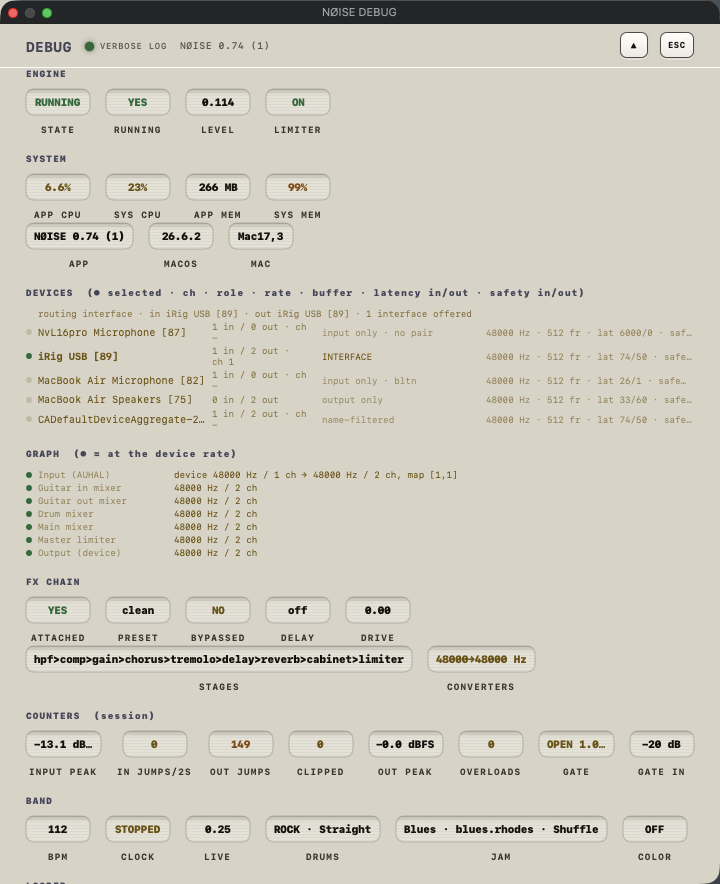
Opening it
Click the NØISE logo text 5 times within 2 seconds, anywhere it appears (main window or the startup screen — each shows its own version of the panel, see First launch for the startup one). There is no keyboard shortcut for it.
Main-window Debug Panel
A floating panel titled "NØISE DEBUG", staying above the main window. Buttons:
- Restart Engine — force-restarts the audio engine with your current settings.
- Refresh Devices — rescans audio devices.
- Audio MIDI Setup — opens the macOS utility directly.
- Recordings folder — opens the folder where tap recordings are saved (a real folder — separate from any log).
- Reset audio settings — a two-tap confirm: first click arms it (label changes to "Confirm reset + relaunch" for 4 seconds), a second click within that window clears every audio setting and relaunches the app.
Logs
Warning
There is no debug log file in this build — logging goes exclusively through Apple's OSLog. Any "open log file" style button just copies the recent log text to the clipboard instead.
- TAIL — toggles auto-scroll on the visible log.
- COPY REPORT — copies a full diagnostics report (device info, sample rates, settings, recent log) to the clipboard.
- SAVE REPORT — writes that same report to a text file you choose, named
noise-report-<timestamp>.txt.