Progression editor
Chords
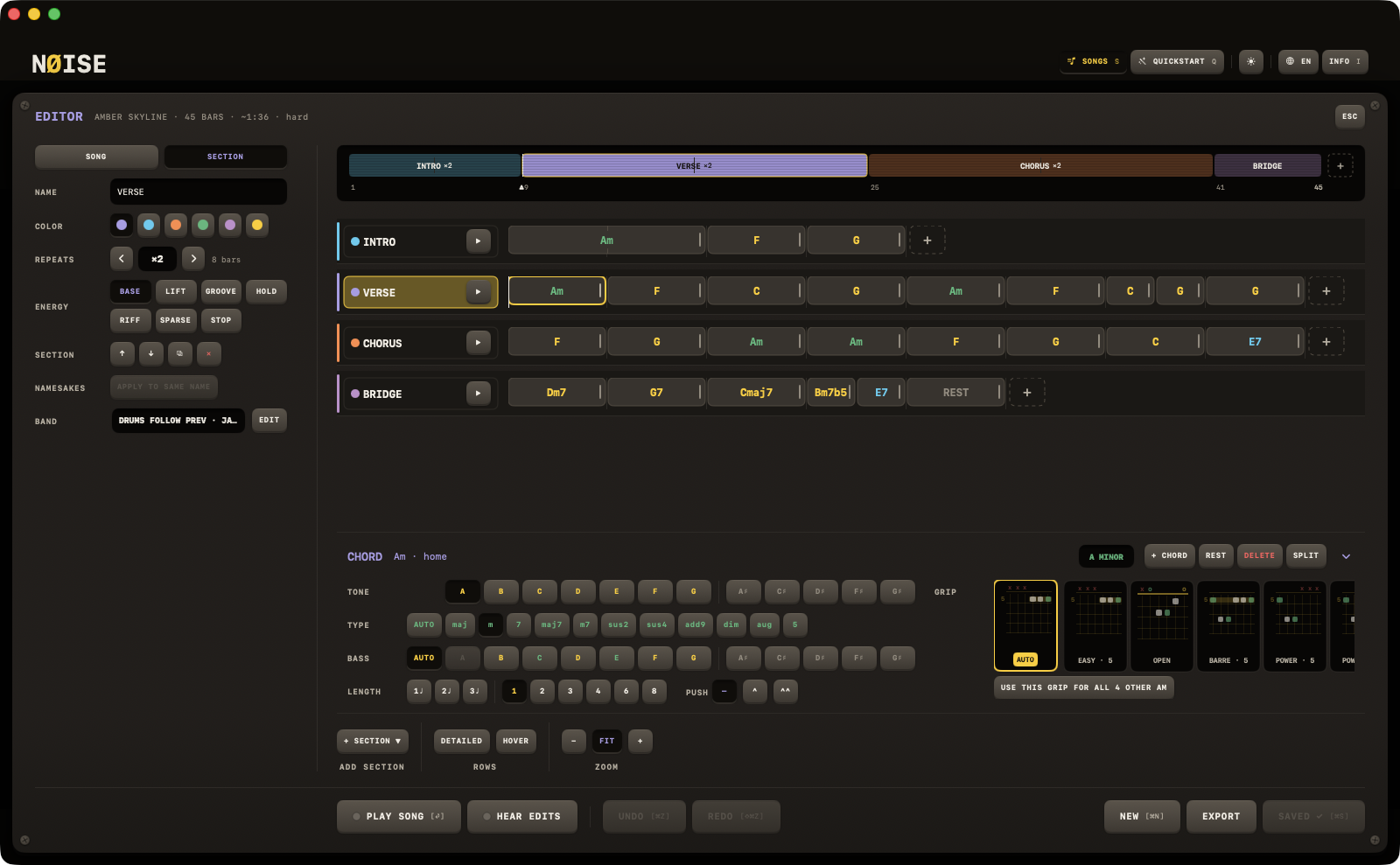
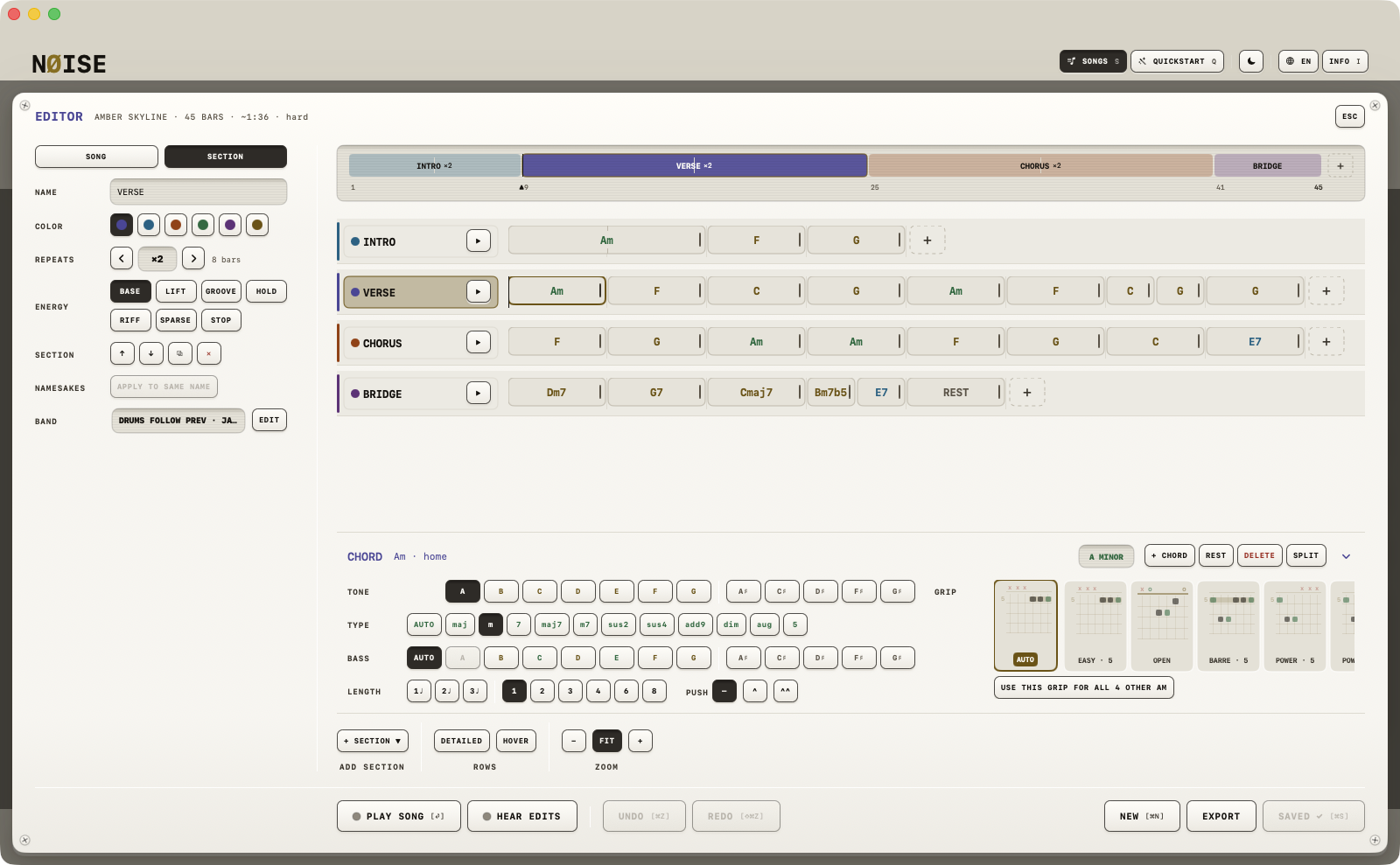
The chord dock — TONE, TYPE, BASS, LENGTH and GRIP — plus SPLIT, the drawer, and the keys that delete, duplicate, copy and paste.
Chords are written in the chord dock, a titled panel at the foot of the chart pane that is always there — no free-text chord field, and since 0.71 no popover either. Text still gets in: a chord or a whole chart copied from anywhere pastes in with ⌘V (see The keys), and a text file is read by IMPORT (see Song text format).
The chord grid
Each section is a horizontal lane of chord blocks, sized to their length — the width is the length. A hairline bar line stands at every bar behind the blocks, and while you resize a chord, beat ticks appear along the foot. A dashed + slot at the end of each lane adds a chord.
The dock follows the selection
- One click on a chord selects it, and the dock shows it.
- Tap the + slot at the end of a lane to add a chord: the slot selects itself, TONE goes live and the other rows wait for a tone.
- + CHORD in the dock's header selects the focused section's
+slot. - A selection that lies outside the focused section is no target: every row dims and the header reads "select a chord, or tap + to add one".
Several chords at once (since 0.74): ⌘-click adds a chord to the selection or takes it out, ⇧-click selects the run from the anchor to it, in reading order across sections. The chord you clicked first stays the anchor — the dock and the inspector show that one. ⌫, ⌘D, ⌘C and ⌘X take the whole set as one undo step, and a copied run pastes behind its last member; in the drawer, DUPLICATE · COPY · DELETE act on the set when the block is in it, SPLIT and REST stay on one chord. A plain click ends it. On the iPad the modifiers come from a keyboard.
Hovering a block for a moment shows a small card: the chord's name, how it sits in the key, how long it holds, and its grip. HOVER under ROWS switches the card off.
Inside the dock
The header reads the chord as it is written — Gadd9/B — with a hint beside it that names what you have made: first inversion, a pedal, not in the chord, in key, home, outside the key — allowed, mind the melody; then the song's KEY as a readout, so working section by section you never lose sight of it; then the verbs + CHORD · REST · DELETE · SPLIT and a chevron that folds the dock to its header — it reads ˅ while the dock is open and ˄ while it is folded, the way a drawer at the foot of a window closes downward. Under it, five rows labelled on the left:
- TONE — all 12 pitch classes, grouped: the tones in the current key first, a divider, then the outside ones.
- TYPE — AUTO plus 11 qualities: major, minor, dominant7, major7, minor7, sus2, sus4, add9, diminished, augmented, power. AUTO leaves the quality unset, so the chord follows the JAM style's own seventh-chord preference and transposes cleanly with the key.
- BASS — AUTO (the root in the bass) or one of the twelve notes: the note the band plays under the chord. A chord tone makes an inversion (
C/E,G/B); a note of the key that is not in the chord makes a pedal (C/D); the chord's own root is disabled. Each key is coloured by what it would be under this chord, and its tooltip says which. On a key-relative chord the bass transposes with the key —C/Ein C isA/C♯in A — and the band actually plays it: the bass player, the walking line, the pad. - LENGTH — the beats short of a bar (
1♩ 2♩ 3♩in 4/4,1♪ … 5♪in 6/8), a rule, then the bars 1 2 3 4 6 8. At the end of the row, PUSH:—,^,^^. A pushed chord is anticipated: the band strikes it an eighth (^) or a sixteenth (^^) before its written place — the "and of four" a rhythm section plays — and holds it over the bar line. The chord's place and length never move; the block reads^Gand wears a notch into the chord before it. See Lengths. - GRIP — AUTO (the library's default for this chord), then every grip the library knows for it, labelled with its name and position (BARRE · 5). Where the dock is wide enough — a Mac window, an iPad on its side — GRIP stands as a column to the right of the four rows, the tiles in the column's width (scrolling when there are more) and USE THIS GRIP FOR ALL … under them, so the dock is only as tall as the four rows and more of the song stands above it; too narrow, on an upright iPad, GRIP goes under the rows. Width decides, never the platform. For a slash chord the grips that sound its bass on the lowest string come first:
C/Eopens on032010,Gadd9/Bonx20203. A click chooses. The grip travels with the chord, so whoever opens the song sees your fingering; a block with a chosen grip carries a small dot in its corner.
The verbs in the header:
- REST — makes the chord a rest (JAM stays silent there, the drums keep playing — good for solo sections).
- DELETE — deletes the chord; the chords after it move up.
- SPLIT — halves the chord on the beat grid and selects the second half, ready for its tone: two chords in one bar in two clicks. Off on a one-beat chord.
- USE THIS GRIP FOR ALL n OTHER
<chord>, at the end of the grip row — gives every other instance of this chord in the song the grip this one has, in one undo step. A grip forG/Bis not a grip forG: the bass counts. When there is none, the line reads "the only<chord>in this song".
Picking a new tone or type keeps the bass and the push; a bass that becomes the root clears itself. Nothing is ever blocked — the fit hint is information, never a validation error.
Note
There is no roman-numeral entry in the editor — roots are always picked and shown as letter names. Internally the chord is still stored key-relative (so it transposes when you change the KEY module later), unless you're reading in a chart that used literal chords.
The drawer
A right-click or Control-click on the Mac opens a drawer of verbs; on the iPad a press-and-hold on a chord or a section name shows them as a menu (hold and move to drag instead).
- On a chord: SPLIT · DUPLICATE · COPY · PASTE · REST · DELETE.
- On a section name: DUPLICATE · COPY · PASTE · MOVE UP · MOVE DOWN · DELETE · LOOP (STOP while it loops).
ESC closes an open drawer first; the editor's own close is the second press.
The keys
| Key | What it does |
|---|---|
| ⌫ / ⌦ | Delete the selected chord — or every chord in the selection, as one step. |
| ⌘D | Duplicate the selected chord after itself, or the focused section when only a section is selected. |
| ⌘C / ⌘X / ⌘V | Copy, cut and paste a chord or a section. A copy holds the exact object — a pasted chord keeps its length, push and grip; a pasted section its band — and puts the text form on the pasteboard (^G, C/E, a section as chart text), so a paste into Notes works. A paste reads the pasteboard first: text from elsewhere is read as a chart, a bare bar line (| Am | G |) as its chords, a lone symbol (F#m7, IV) as one bar. Paste lands after the selected chord, else at the end of the focused section. |
| ⌘Z / ⇧⌘Z | Undo, redo. See Undo. |
A focused text field keeps its own keys: ⌘V in SONG NAME pastes into the field. Chord selection is by click or tap; ↑ ↓ select a section and ← → wind the band a chord — see Overview.
| Key | Action |
|---|---|
| ⏎ | Play the song from the top / stop |
| SPACE | Hold here. Held or stopped: the selected section from its top (its ▶); the section on the band carries on; no selection plays the song |
| ← | Wind back a chord in the section that plays (whole bars) |
| → | Wind on a chord in the section that plays (whole bars) |
| ↑ | Select the section above |
| ↓ | Select the section below |
| ⌫ | Delete the selected chord |
| ⌘D | Duplicate the selected chord after itself, or the section |
| ⌘C | Copy the selected chord (or section) - as text too |
| ⌘X | Cut the selected chord (or section) |
| ⌘V | Paste after the selection; text from elsewhere is read as a chord or a chart |
| ⌘Z | Undo |
| ⇧⌘Z | Redo |
| ⌘S | Save |
| ⌘N | New song (asks first when there is unsaved work) |
| I | This overlay |
| ESC | Close (asks first when there is unsaved work). No other key on this page works while the editor is open, except VIEW's ⌘ keys |
Moving chords
Chord blocks are draggable: drop one onto another to swap them, drop one on the + slot (or past the end of the lane) to move it there, or drop it outside any slot to remove it. A pinch on the trackpad or the iPad zooms the chart.
Limits
Up to 16 chords per section in the editor (the song format holds up to 32).